Pages

Friday, 16 December 2016

Informal Reading Inventory--Burns & Roe

This year I have tried giving the Informal Reading Inventory (IRI) as an alternative to the PM Benchmark.  The IRI is easy to administer and has the running record component that is essential for testing fluency and decoding.  This test does a more comprehensive breakdown of the reading strategies.

Overall, the instructional levels came out lower than on the PM Benchmark.  However, that was not my main concern.

Image result for burns and roe iri
I was interested in seeing if there were common difficulties with reading strategies.  This information could help guide my instruction, regardless of reading level.  From the data, I could see that inference and finding detail were a concern. I will be able to use the strengths of main idea and cause/effect to strengthen areas of difficulty.


Another piece of information you can get from the IRI which I am currently playing around with is listening comprehension.  It will be interesting to see if students test higher on listening...this will help to see if they use the strategies at all.

Because there are four different forms, there is flexibility in how to test.

Both the PM Benchmark and the IRI have their pros and cons. The key to either assessment is to administer it properly and analyze the results in order to drive instruction.

Tuesday, 22 November 2016

Low Prep Math Games

This resource is really good for creating low prep math games, using dice, charts, tables, etc.  It is aligned to the Common Core in the States, but very much can meet our outcomes.  Learning targets, teaching tips and technology tips are very helpful.  There is also information on how to differentiate the game.  This book is not flashy and colourful so a person might not take the time to look through it, but the games are engaging and meaningful.

Image result for math games for operations and algebraic thinking

Saturday, 27 August 2016

Keeping up with Tech

One thing is for sure- technology is always changing! I find that using social media is a fantastic way to find out about new tech tools, and learn about updates to old favourites. 

Over the summer there were lots of updates to Google Classroom and Drive. If you want to check them out, here is a great article that summarizes all the new features: Google Updates You Might Have Missed

Here are a few different people you can follow and places you can follow to help you keep your technology game up-to-date!

  •  Follow "Free Tech for Teachers" on Facebook. The author is always in the know about new updates and cool tech tools
  • Hop on Twitter and give follow these awesome tech people:
    • @edutopia
    • @ditchthattextbook 
    • @ShakeUpLearning 
    • @Alice Keeler 
    • @rmbyrne
    • There are SO many other great people to follow, you just have to explore a bit!
  • Search the following hashtags on twitter
    • #edtech
    • #googleEdu
    • #ipaded
  • Check out the blog- If you scroll back through old posts, you will find lots of different tech ideas. Also, the more we share and post, the richer the resources we have access to on here! 
  • Collaborate/chat with coworkers. Even in different division, our teachers are doing amazing things with different tech tools that have the potential to be used throughout the school. 
  • And you can always bug me! 

Its important to remember that while technology is awesome, it needs to be meaningful as well. The goal of technology in the classroom should be to improve student learning, and so as teachers we need to look at how we are using the technology to do that. Sometimes we might need to use a different tech tool, or find a more traditional approach in order to ensure students are receiving meaningful learning opportunities. 


Sunday, 15 May 2016

Get Epic!

Hey everyone! Below is the link for that Get Epic! website I emailed you all about a couple weeks ago. If you haven't had a chance to check it out yet, the website is filled with e-books. They have so many different categories and genres, and many of the books have the option to be read aloud. Some of the books even list the A.R level! The website is absolutely free for educators, which is pretty great. I myself, have been using it a tonne since I discovered it. I often will play one of the read aloud stories to them during snack time. My kids look forward to this everyday. I encourage you all to check out the app as well. Both the website and the app are really quite easy to use. There is even an educator's dashboard where you can add and manage student profiles and view their reading progress. Oh! And there's also teacher resources available as well. Take a look at it - hopefully you and your students will enjoy it as much as me and my students do.

https://www.getepic.com


Friday, 13 May 2016

Picture Prompts

It can be hard to find good picture prompts for writing.  When doing the PAT this year, we took note of the website they used for the prompt as our kids were able to generate a lot of interesting and unique stories.  The site has a number of children's illustrators. Upon looking at the website, we noticed a lot of good pictures that could be used for both inspiration for writing and assessments.  

Check out illustrations at:  http://www.tugeau2.com/

Below are a few examples of pictures from the site.

Damian Ward


Jason Dove


Holly Clinton Brown


Wednesday, 27 April 2016

Parts of Speech

So, I always struggle thinking of engaging ways for the students to practice identifying and brainstorming nouns, adjectives and verbs. I tried a new activity today that the kids enjoyed and I liked since it was student-centred and had them trying to think of less common "boring" words.

I showed this picture on the Smartboard. I am going to repeat this lesson with other "busy" pictures once in a while. Students were given a chart that was divided into nouns, adjectives and verbs. We brainstormed a few based on the pictures and they each had to record 5 of each type of word. Then they got to draw their own version of the picture once they were done. It's nice when they have background knowledge on parts of speech because now if they have an incomplete sentence, I can say "You're missing a verb!" Or, if their sentence is simplistic or boring I can say, "Why don't you add an adjective?"

Wednesday, 9 March 2016

Marking in the paperless classroom

I don't know about anyone else, but a majority of the work in my classroom takes place in an online environment. It is possible to do marking through Google Classroom, but it isn't always the most effective system. Enter Goobric and Doctopus. The best way to explain it is to walk through an example of what exactly these programs do. I have used it for the past few assignments I have done with students, and it has really streamlined the process! 


Step One: Assign students a writing (or any other) assignment through Google Classroom. Name it something practical and descriptive so it is easy to find! 


Step Two: Type up your rubric in Google Sheets


When you do this, it is important that you put your numbers along the top (and leave A1) blank, and put your criteria down the left-hand side. 

Step Three: Open up a new (Blank) Google Sheets document. 
I usually name it whatever the project name is and then add assessment at the end. This is where all your marks will be compiled 


Step Four: In your newly created document, you will need to run the add-on Doctopus.
  • If you don't have it already, you can go to the add-ons tab, and go to get add-ons, and search for Doctopus. 
  • If you have the add-on, you will need to launch it.


Step Five: Use Doctopus to ingest your assignment and select rubric
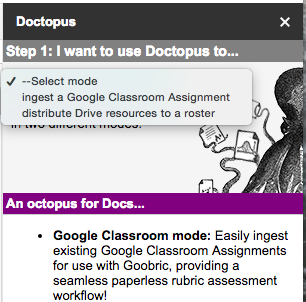

Step 1: Select "Ingest a Google Classroom Assignment"

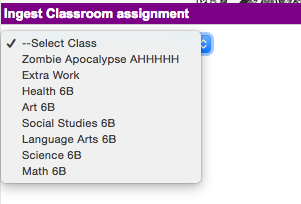
Step Two: Select your class from classroom


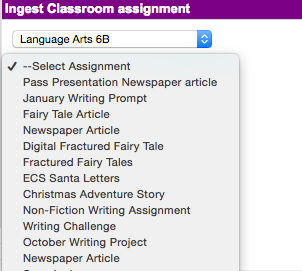
Step Three: Choose your Assignment  


Once you have your class and assignment chosen, you will pick your rubric
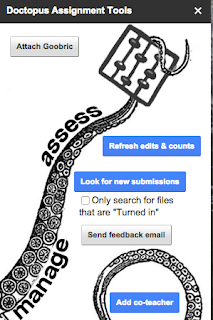
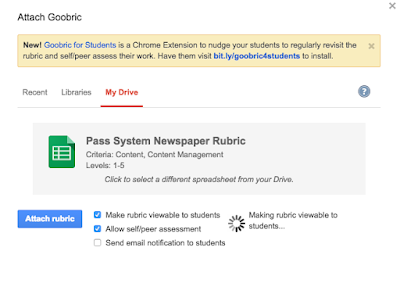
Click on "Attach Goobric"
Select your rubric from Google Drive. Must be in Sheets! 

Step Six: Make sure you have the Goobric Extension (You only need to do this step the first time you do this)

Go to the Google Chrome Web Store, and search for Goobric. Or you can just click on this link to go Goobric Extension. The icon looks like this, and will appear with your other extensions


Step Seven: Find your students' assignments in your Google Classroom folder within Google Drive 


Click on the first assignment to open it up. Once you have it open, you must click on your Goobric extension. It will open up the same student document in a new tab

Step Eight: Assess student writing/work and give feedback

When your students work opens up through Goobric, it will look like the image below. You simply click on the rubric description that fits their work to select it.  You can add comments into the comment box, and you can also attach a voice comment using the microphone button. When you are done, you can click submit. It will automatically move you onto the next assignment. 


Step Nine: Check out your assessment data 
If you go back to that new document you created all the way back in step three, all of your students' rubric scores and comments will be compiled there for you to view and print. The rubric scores and comments automatically attach themselves to the end of the students' assignment.